
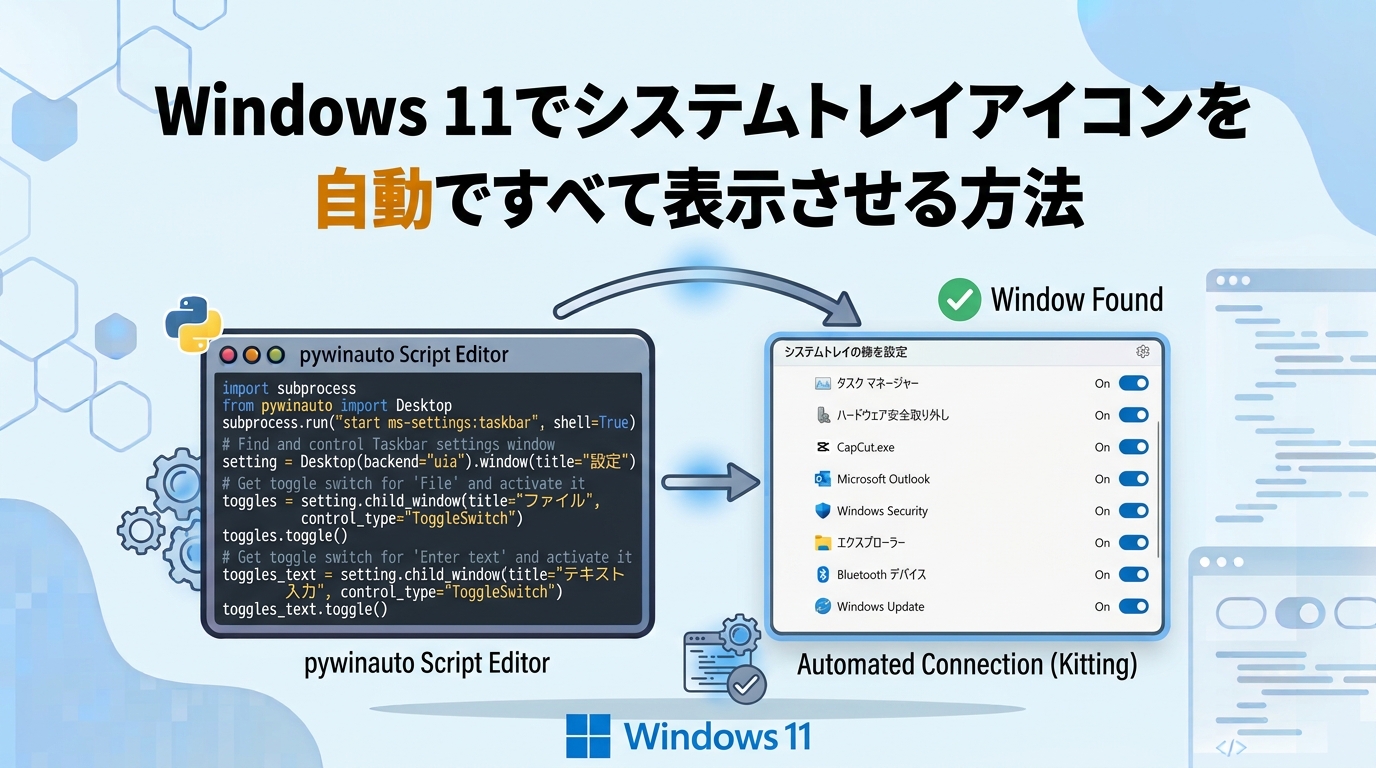
Windows 10には、「常にすべてのアイコンを通知領域に表示する」という設定項目が存在していました。
この設定を有効にすることで、システムトレイに表示されるアイコンを一括で表示させることができ、レジストリから設定を変更することも可能でした。
しかし、Windows 11ではこの設定項目が廃止され、従来のレジストリによる一括設定も利用できなくなっています。
そのため、Windows 11ですべてのアイコンを表示させるには、基本的に各アイコンの設定を個別にオンにする必要があり、複数のアイコンを設定する場合には非常に手間がかかります。
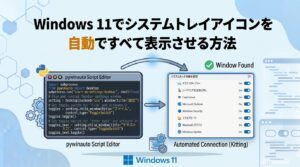
そこで今回は、レジストリを使用しない別の方法によって、システムトレイアイコンを一括で表示させる方法を紹介します。
Pythonのライブラリである「pywinauto」を活用し、Windows 11の設定画面を自動操作することで、各アイコンの表示設定を効率的に変更していきます。
特に、複数台のPCをセットアップするキッティング業務や、Windowsの初期設定を自動化したい場合に役立つ内容です。
システムトレイアイコンの自動表示に必要なもの
システムトレイアイコンを自動ですべて表示させるのに必要なものは以下の通りです。
- Python
- pywinauto
それぞれについて簡単に説明していきます。
Python
Pythonとは、1991年に開発されたオープンソース(誰でも自由に利用・改良・再配布ができるようにした仕組みや開発モデルのこと)のプログラミング言語の1つです。
Pythonによって書かれたコードは英語の文章のように読みやすいため、プログラミング初学者に特に人気の言語となっています。
最近ではAIや機械学習がトレンドですが、その構築に必要な道具がそろっているのがこのPythonです。
Anacondaをダウンロードすれば必要なものが揃い、すぐに動かすことができるのでおすすめです。
pywinauto
pywinautoとは、Windowsの画面操作を自動化できるPythonのライブラリ(必要なものが一式そろったお道具箱のようなもの)のこと。
このpywinautoを使用することで、人間が普段マウスやキーボードで行っている操作を自動化することができます。
BatやPowerShellでは自動化が難しいものでも、pywinautoを使用すれば大抵のことは自動化できます。
動作検証環境
本記事にて紹介するスクリプトは、以下の環境で動作確認済みです。
| OS | Windows 11 pro |
| OS バージョン | 25H2 |
| OS ビルド | 26200.9711 |
| Python | 3.10.15 |
| Jupyter Notebook | 7.3.2 |
| pywinauto | 0.6.9 |
うまく動作しない場合は、上記環境に合わせてみてください。
システムトレイアイコンを自動ですべて表示させる方法
システムトレイアイコンをすべて表示させる全体的な動作としては以下の通りです。
- 設定画面を起動する
- その他のシステムトレイアイコンの設定画面を開く
- 各アイコンの設定項目を取得する
- 非表示になっているアイコンを表示させる
- 設定変更後の状態を確認する
それぞれの動作を自動化するコードについて解説していきます。
① 設定画面を起動するコード
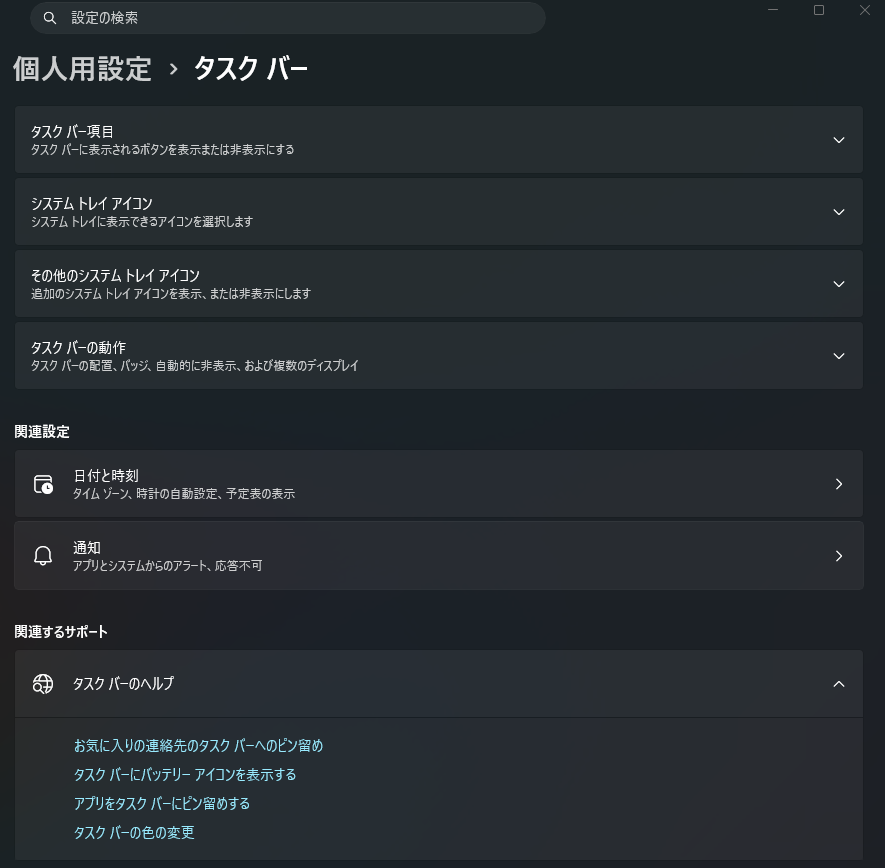
タスクバーの設定画面を起動するところから自動化を行うため、まず最初に、設定画面を起動するコードを記述します。
前提として、コマンドプロンプト上でタスクバーの設定画面を開くには以下のコマンドで可能です。
start ms-settings:taskbarPythonからでもsubprocessというモジュールを使用することで、コマンドプロンプト上と同じ動作が可能です。
具体的には以下のコードになります。
import subprocess

subprocess.run("start ms-settings:taskbar", shell=True)shell=Trueにより、コマンドプロンプトなどのシェルを経由して処理を実行することができます。
② その他のシステムトレイアイコンの設定画面を開くコード
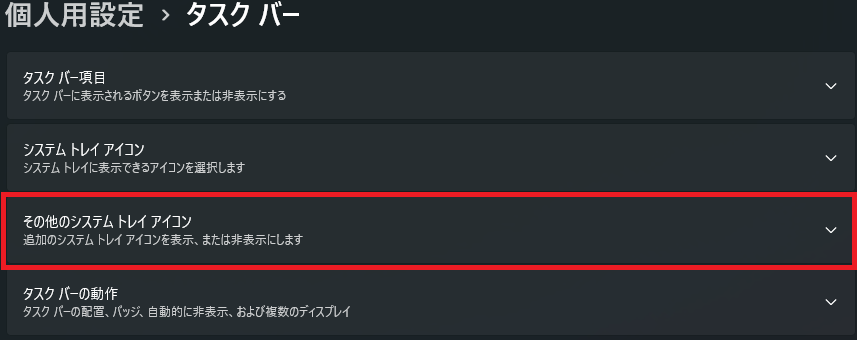
コマンドプロンプト上ではシステムトレイアイコンの設定を開くことはできないため、ここからはpywinautoを使用します。
まずは自動化に必要なタスクバーの設定画面における要素を、次のコードにて列挙していきます。
from pywinauto import Desktop

setting = Desktop(backend="uia").window(title_re="設定")
setting.print_control_identifiers()上記スクリプトの実行結果の一部としては以下の通りです。
Control Identifiers:

Dialog - '設定'    (L2, T58, R1218, B999)
['Dialog', '設定', '設定Dialog', 'Dialog0', 'Dialog1', '設定0', '設定1', '設定Dialog0', '設定Dialog1']
child_window(title="設定", control_type="Window")
   |
   | Dialog - '設定'    (L1022, T59, R1210, B91)
   | ['Dialog2', '設定2', '設定Dialog2']
   | child_window(title="設定", auto_id="TitleBar", control_type="Window")
   |    |
   |    | Menu - 'システム'    (L0, T0, R0, B0)
   |    | ['システム', 'Menu', 'システムMenu', 'システム0', 'システム1']
   |    | child_window(title="システム", auto_id="SystemMenuBar", control_type="MenuBar")
   |    |    |
   |    |    | MenuItem - 'システム'    (L0, T0, R0, B0)
   |    |    | ['システム2', 'システムMenuItem', 'MenuItem']
| | | child_window(title="システム", control_type="MenuItem")各要素の中で「その他のシステムトレイアイコン」に該当する要素は以下の通りです。
   |    |    |    |    |    | Static - 'その他のシステム トレイ アイコン'    (L353, T435, R522, B454)
   |    |    |    |    |    | ['その他のシステム トレイ アイコンStatic', 'その他のシステム トレイ アイコン2', 'Static15']
| | | | | | child_window(title="その他のシステム トレイ アイコン", control_type="Text")この要素を指定し、クリック動作(.click_input())を与えることで「その他のシステムトレイアイコン」の設定画面を開くことができます。
具体的には以下のコードです。
from pywinauto import Desktop
setting = Desktop(backend="uia").window(title_re="設定")
other_trayicon = setting.child_window(title="その他のシステム トレイ アイコン", control_type="Text")
other_trayicon.click_input()③ 各アイコンの設定項目を取得するコード
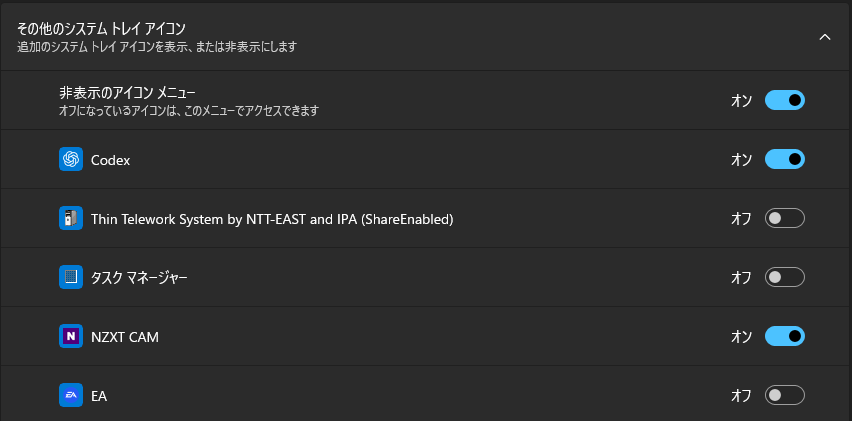
各アイコンを表示させるか否かは、以下の画面にて設定できます。
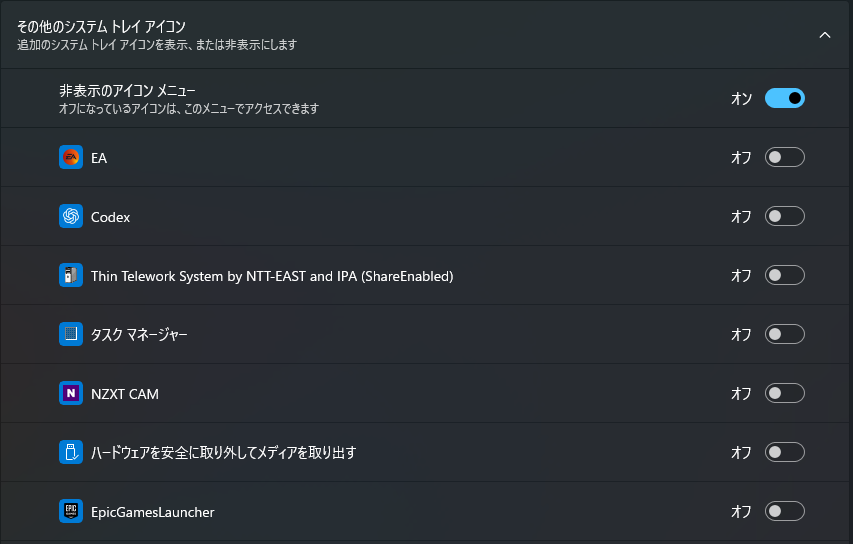
上記画面における「その他のシステムトレイアイコン」の要素としては以下の通りです。
| | | | | GroupBox - 'その他のシステム トレイ アイコン' (L336, T418, R1186, B991)
| | | | | ['その他のシステム トレイ アイコンGroupBox', 'GroupBox11', 'その他のシステム トレイ アイコン', 'その他のシステム トレイ アイコン0', 'その他のシステム トレイ アイコン1']
| | | | | child_window(title="その他のシステム トレイ アイコン", control_type="Group")上記配下の要素に各アイコンの要素が存在しています。
| | | | | GroupBox - 'その他のシステム トレイ アイコン' (L336, T418, R1186, B991)
| | | | | ['その他のシステム トレイ アイコンGroupBox', 'GroupBox11', 'その他のシステム トレイ アイコン', 'その他のシステム トレイ アイコン0', 'その他のシステム トレイ アイコン1']
| | | | | child_window(title="その他のシステム トレイ アイコン", control_type="Group")
| | | | | |
   |    |    |    |    |    | Static - 'その他のシステム トレイ アイコン'    (L353, T435, R522, B454)
   |    |    |    |    |    | ['その他のシステム トレイ アイコンStatic', 'その他のシステム トレイ アイコン2', 'Static15']
   |    |    |    |    |    | child_window(title="その他のシステム トレイ アイコン", control_type="Text")
| | | | | |
| | | | | | Static - '追加のシステム トレイ アイコンを表示、または非表示にします' (L353, T454, R634, B470)
| | | | | | ['追加のシステム トレイ アイコンを表示、または非表示にします', '追加のシステム トレイ アイコンを表示、または非表示にしますStatic', 'Static16']
| | | | | | child_window(title="追加のシステム トレイ アイコンを表示、または非表示にします", control_type="Text")
| | | | | |
| | | | | | Button - 'その他の設定を表示する' (L1145, T437, R1177, B469)
| | | | | | ['その他の設定を表示する3', 'その他の設定を表示するButton3', 'Button13']
| | | | | | child_window(title="その他の設定を表示する", auto_id="EntityItemButton", control_type="Button")
| | | | | |
| | | | | | Static - '非表示のアイコン メニュー' (L395, T499, R532, B518)
| | | | | | ['非表示のアイコン メニュー', 'Static17', '非表示のアイコン メニューStatic', '非表示のアイコン メニュー0', '非表示のアイコン メニュー1']
| | | | | | child_window(title="非表示のアイコン メニュー", control_type="Text")
| | | | | |
| | | | | | Static - 'オフになっているアイコンは、このメニューでアクセスできます' (L395, T518, R656, B534)
| | | | | | ['オフになっているアイコンは、このメニューでアクセスできます', 'Static18', 'オフになっているアイコンは、このメニューでアクセスできますStatic']
| | | | | | child_window(title="オフになっているアイコンは、このメニューでアクセスできます", control_type="Text")
| | | | | |
| | | | | | Button - '非表示のアイコン メニュー' (L1067, T496, R1141, B536)
| | | | | | ['非表示のアイコン メニュー2', 'Button14', '非表示のアイコン メニューButton']
| | | | | | child_window(title="非表示のアイコン メニュー", auto_id="SystemSettings_SysTray_Chevron_Toggle_ToggleSwitch", control_type="Button")
| | | | | |
| | | | | | ListBox - '' (L337, T546, R1185, B991)
| | | | | | ['オフになっているアイコンは、このメニューでアクセスできますListBox', 'ListBox']
| | | | | | |
| | | | | | | ListItem - 'タスク マネージャー' (L337, T664, R1185, B722)
| | | | | | | ['タスク マネージャーListItem', 'タスク マネージャー', 'ListItem16', 'タスク マネージャー0', 'タスク マネージャー1']
| | | | | | | child_window(title="タスク マネージャー", control_type="ListItem")
| | | | | | | |
| | | | | | | | GroupBox - 'タスク マネージャー' (L337, T664, R1185, B722)
| | | | | | | | ['タスク マネージャーGroupBox', 'タスク マネージャー2', 'GroupBox14']
| | | | | | | | child_window(title="タスク マネージャー", auto_id="SystemSettings_DesktopTaskbar_SystemTrayAppListItem15661468913921116212_EntityItem", control_type="Group")
| | | | | | | | |
| | | | | | | | | Static - 'タスク マネージャー' (L427, T684, R524, B703)
| | | | | | | | | ['タスク マネージャーStatic', 'タスク マネージャー3', 'Static21']
| | | | | | | | | child_window(title="タスク マネージャー", control_type="Text")
| | | | | | | | |
| | | | | | | | | Button - 'タスク マネージャー' (L1067, T673, R1141, B713)
| | | | | | | | | ['タスク マネージャーButton', 'タスク マネージャー4', 'Button17']
| | | | | | | | | child_window(title="タスク マネージャー", auto_id="SystemSettings_DesktopTaskbar_SystemTrayAppListItem15661468913921116212_ToggleSwitch", control_type="Button")
| | | | | | |
| | | | | | | ListItem - 'ハードウェアを安全に取り外してメディアを取り出す' (L337, T782, R1185, B840)
| | | | | | | ['ListItem18', 'ハードウェアを安全に取り外してメディアを取り出すListItem', 'ハードウェアを安全に取り外してメディアを取り出す', 'ハードウェアを安全に取り外してメディアを取り出す0', 'ハードウェアを安全に取り外してメディアを取り出す1']
| | | | | | | child_window(title="ハードウェアを安全に取り外してメディアを取り出す", control_type="ListItem")
| | | | | | | |
| | | | | | | | GroupBox - 'ハードウェアを安全に取り外してメディアを取り出す' (L337, T782, R1185, B840)
| | | | | | | | ['ハードウェアを安全に取り外してメディアを取り出すGroupBox', 'GroupBox16', 'ハードウェアを安全に取り外してメディアを取り出す2']
| | | | | | | | child_window(title="ハードウェアを安全に取り外してメディアを取り出す", auto_id="SystemSettings_DesktopTaskbar_SystemTrayAppListItem16735121706262046076_EntityItem", control_type="Group")
| | | | | | | | |
| | | | | | | | | Static - 'ハードウェアを安全に取り外してメディアを取り出す' (L427, T802, R693, B821)
| | | | | | | | | ['Static23', 'ハードウェアを安全に取り外してメディアを取り出すStatic', 'ハードウェアを安全に取り外してメディアを取り出す3']
| | | | | | | | | child_window(title="ハードウェアを安全に取り外してメディアを取り出す", control_type="Text")
| | | | | | | | |
| | | | | | | | | Button - 'ハードウェアを安全に取り外してメディアを取り出す' (L1067, T791, R1141, B831)
| | | | | | | | | ['ハードウェアを安全に取り外してメディアを取り出すButton', 'Button19', 'ハードウェアを安全に取り外してメディアを取り出す4']
| | | | | | | | | child_window(title="ハードウェアを安全に取り外してメディアを取り出す", auto_id="SystemSettings_DesktopTaskbar_SystemTrayAppListItem16735121706262046076_ToggleSwitch", control_type="Button")
| | | | | | |
| | | | | | | ListItem - 'CapCut.exe' (L337, T900, R1185, B958)
| | | | | | | ['ListItem20', 'CapCut.exeListItem', 'CapCut.exe', 'CapCut.exe0', 'CapCut.exe1']
| | | | | | | child_window(title="CapCut.exe", control_type="ListItem")
| | | | | | | |
| | | | | | | | GroupBox - 'CapCut.exe' (L337, T900, R1185, B958)
| | | | | | | | ['GroupBox18', 'CapCut.exe2', 'CapCut.exeGroupBox']
| | | | | | | | child_window(title="CapCut.exe", auto_id="SystemSettings_DesktopTaskbar_SystemTrayAppListItem1684285428612462422_EntityItem", control_type="Group")
| | | | | | | | |
| | | | | | | | | Static - 'CapCut.exe' (L427, T920, R497, B939)
| | | | | | | | | ['Static25', 'CapCut.exeStatic', 'CapCut.exe3']
| | | | | | | | | child_window(title="CapCut.exe", control_type="Text")
| | | | | | | | |
| | | | | | | | | Button - 'CapCut.exe' (L1067, T909, R1141, B949)
| | | | | | | | | ['Button21', 'CapCut.exeButton', 'CapCut.exe4']
| | | | | | | | | child_window(title="CapCut.exe", auto_id="SystemSettings_DesktopTaskbar_SystemTrayAppListItem1684285428612462422_ToggleSwitch", control_type="Button")
| | | | | | |
| | | | | | | ListItem - 'Microsoft Outlook' (L0, T0, R0, B0)
| | | | | | | ['Microsoft OutlookListItem', 'ListItem22', 'Microsoft Outlook', 'Microsoft Outlook0', 'Microsoft Outlook1']
| | | | | | | child_window(title="Microsoft Outlook", control_type="ListItem")
| | | | | | | |
| | | | | | | | GroupBox - 'Microsoft Outlook' (L0, T0, R0, B0)
| | | | | | | | ['Microsoft OutlookGroupBox', 'GroupBox20', 'Microsoft Outlook2']
| | | | | | | | child_window(title="Microsoft Outlook", auto_id="SystemSettings_DesktopTaskbar_SystemTrayAppListItem2149972830974747972_EntityItem", control_type="Group")
| | | | | | | | |
| | | | | | | | | Static - 'Microsoft Outlook' (L0, T0, R0, B0)
| | | | | | | | | ['Microsoft OutlookStatic', 'Microsoft Outlook3', 'Static27']
| | | | | | | | | child_window(title="Microsoft Outlook", control_type="Text")
| | | | | | | | |
| | | | | | | | | Button - 'Microsoft Outlook' (L0, T0, R0, B0)
| | | | | | | | | ['Microsoft Outlook4', 'Button23', 'Microsoft OutlookButton']
| | | | | | | | | child_window(title="Microsoft Outlook", auto_id="SystemSettings_DesktopTaskbar_SystemTrayAppListItem2149972830974747972_ToggleSwitch", control_type="Button")
| | | | | | |
| | | | | | | ListItem - 'Windows Security notification icon' (L0, T0, R0, B0)
| | | | | | | ['ListItem25', 'Windows Security notification icon', 'Windows Security notification iconListItem', 'Windows Security notification icon0', 'Windows Security notification icon1']
| | | | | | | child_window(title="Windows Security notification icon", control_type="ListItem")
| | | | | | | |
| | | | | | | | GroupBox - 'Windows Security notification icon' (L0, T0, R0, B0)
| | | | | | | | ['Windows Security notification iconGroupBox', 'GroupBox23', 'Windows Security notification icon2']
| | | | | | | | child_window(title="Windows Security notification icon", auto_id="SystemSettings_DesktopTaskbar_SystemTrayAppListItem3641581018804749854_EntityItem", control_type="Group")
| | | | | | | | |
| | | | | | | | | Static - 'Windows Security notification icon' (L0, T0, R0, B0)
| | | | | | | | | ['Windows Security notification iconStatic', 'Windows Security notification icon3', 'Static30']
| | | | | | | | | child_window(title="Windows Security notification icon", control_type="Text")
| | | | | | | | |
| | | | | | | | | Button - 'Windows Security notification icon' (L0, T0, R0, B0)
| | | | | | | | | ['Windows Security notification iconButton', 'Button26', 'Windows Security notification icon4']
| | | | | | | | | child_window(title="Windows Security notification icon", auto_id="SystemSettings_DesktopTaskbar_SystemTrayAppListItem3641581018804749854_ToggleSwitch", control_type="Button")
| | | | | | |
| | | | | | | ListItem - 'エクスプローラー' (L0, T0, R0, B0)
| | | | | | | ['エクスプローラーListItem', 'ListItem27', 'エクスプローラー', 'エクスプローラー0', 'エクスプローラー1']
| | | | | | | child_window(title="エクスプローラー", control_type="ListItem")
| | | | | | | |
| | | | | | | | GroupBox - 'エクスプローラー' (L0, T0, R0, B0)
| | | | | | | | ['GroupBox25', 'エクスプローラー2', 'エクスプローラーGroupBox']
| | | | | | | | child_window(title="エクスプローラー", auto_id="SystemSettings_DesktopTaskbar_SystemTrayAppListItem5230310388812263611_EntityItem", control_type="Group")
| | | | | | | | |
| | | | | | | | | Static - 'エクスプローラー' (L0, T0, R0, B0)
| | | | | | | | | ['エクスプローラーStatic', 'エクスプローラー3', 'Static32']
| | | | | | | | | child_window(title="エクスプローラー", control_type="Text")
| | | | | | | | |
| | | | | | | | | Button - 'エクスプローラー' (L0, T0, R0, B0)
| | | | | | | | | ['エクスプローラー4', 'Button28', 'エクスプローラーButton']
| | | | | | | | | child_window(title="エクスプローラー", auto_id="SystemSettings_DesktopTaskbar_SystemTrayAppListItem5230310388812263611_ToggleSwitch", control_type="Button")
| | | | | | |
| | | | | | | ListItem - 'Bluetooth デバイス' (L0, T0, R0, B0)
| | | | | | | ['Bluetooth デバイスListItem', 'Bluetooth デバイス', 'ListItem28', 'Bluetooth デバイス0', 'Bluetooth デバイス1']
| | | | | | | child_window(title="Bluetooth デバイス", control_type="ListItem")
| | | | | | | |
| | | | | | | | GroupBox - 'Bluetooth デバイス' (L0, T0, R0, B0)
| | | | | | | | ['GroupBox26', 'Bluetooth デバイス2', 'Bluetooth デバイスGroupBox']
| | | | | | | | child_window(title="Bluetooth デバイス", auto_id="SystemSettings_DesktopTaskbar_SystemTrayAppListItem6453250241163353401_EntityItem", control_type="Group")
| | | | | | | | |
| | | | | | | | | Static - 'Bluetooth デバイス' (L0, T0, R0, B0)
| | | | | | | | | ['Bluetooth デバイス3', 'Bluetooth デバイスStatic', 'Static33']
| | | | | | | | | child_window(title="Bluetooth デバイス", control_type="Text")
| | | | | | | | |
| | | | | | | | | Button - 'Bluetooth デバイス' (L0, T0, R0, B0)
| | | | | | | | | ['Bluetooth デバイス4', 'Button29', 'Bluetooth デバイスButton']
| | | | | | | | | child_window(title="Bluetooth デバイス", auto_id="SystemSettings_DesktopTaskbar_SystemTrayAppListItem6453250241163353401_ToggleSwitch", control_type="Button")
| | | | | | |
| | | | | | | ListItem - 'Windows Update の状態' (L0, T0, R0, B0)
| | | | | | | ['Windows Update の状態ListItem', 'ListItem30', 'Windows Update の状態', 'Windows Update の状態0', 'Windows Update の状態1']
| | | | | | | child_window(title="Windows Update の状態", control_type="ListItem")
| | | | | | | |
| | | | | | | | GroupBox - 'Windows Update の状態' (L0, T0, R0, B0)
| | | | | | | | ['Windows Update の状態GroupBox', 'GroupBox28', 'Windows Update の状態2']
| | | | | | | | child_window(title="Windows Update の状態", auto_id="SystemSettings_DesktopTaskbar_SystemTrayAppListItem6734356881022470871_EntityItem", control_type="Group")
| | | | | | | | |
| | | | | | | | | Static - 'Windows Update の状態' (L0, T0, R0, B0)
| | | | | | | | | ['Windows Update の状態3', 'Windows Update の状態Static', 'Static35']
| | | | | | | | | child_window(title="Windows Update の状態", control_type="Text")
| | | | | | | | |
| | | | | | | | | Button - 'Windows Update の状態' (L0, T0, R0, B0)
| | | | | | | | | ['Windows Update の状態Button', 'Button31', 'Windows Update の状態4']
| | | | | | | | | child_window(title="Windows Update の状態", auto_id="SystemSettings_DesktopTaskbar_SystemTrayAppListItem6734356881022470871_ToggleSwitch", control_type="Button")
これらの中からcontrol_typeが"Button"になっているものを絞り込みます。
絞り込むにはdescendants関数を使用します。
また、絞り込んだものの中からAutomationId に "ToggleSwitch" を含む要素を取得します。
下記のコードでいうと.element_info.automation_idの部分になります。
setting = Desktop(backend="uia").window(title_re="設定")
setting.set_focus()

other_tray = setting.child_window(title="その他のシステム トレイ アイコン", control_type="Group")

toggle_buttons = [
    btn for btn in other_tray.descendants(control_type="Button")
    if "ToggleSwitch" in (btn.element_info.automation_id or "")
]上記コードにて各アイコンの要素のみを抽出可能となります。
④ 非表示になっているアイコンを表示させるコード
まずは各アイコンのトグルスイッチがオン/オフになっているかを.get_toggle_state()にて確認します。
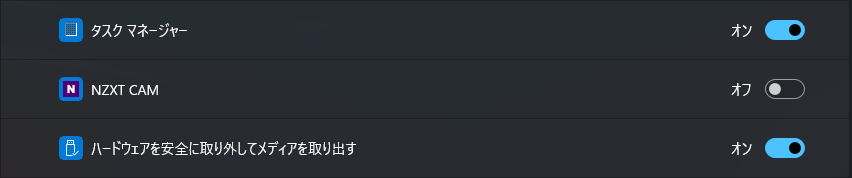
オフになっていれば.get_toggle_state()の結果が0となります。
この0となっているものに対してクリック操作(.click_input())を与えることでオンに切り替えられるというわけです。
また、すべてのトグルスイッチをオンにするには、画面を下にスクロールする必要があります。
そこで.type_keys("{DOWN}")によりキーボードの下矢印ボタン押下の操作を与えます。
count = 0

for tg_btn in toggle_buttons:

    try:
        #スイッチがオフ(0)ならクリックしてオンにする
        if tg_btn.get_toggle_state() == 0:
            tg_btn.click_input()
            time.sleep(0.5)

    except Exception as e:
        print(e)

    #カウントアップ
    count += 1

    #2つオンにしたら下矢印ボタン押下
    if count % 2 == 0:
        other_tray.type_keys("{DOWN}")
time.sleep(0.5)1回ずつ下矢印ボタン押下を与えると、画面が先行しすぎてすべてのトグルスイッチを押下できなくなるため、ちょうどよく2回で下矢印ボタン押下を与えます。
⑤ 設定変更後の状態を確認するコード
下記コードはあってもなくてもどちらでも良いですが、うまく設定されたかどうかは以下のコードで確認できます。
for btn in toggle_buttons:
    print(
        f"名前: {btn.window_text()}, "
        f"状態: {btn.get_toggle_state()}"
)状態が1であればオンに設定されているということになります。
完成版スクリプト
①~⑤のスクリプトをまとめ、体裁を整えたスクリプトが以下の通りです。
# システムトレイアイコン表示自動化(全て)
from pywinauto import Desktop
from pywinauto.findwindows import ElementNotFoundError
import time
import subprocess
# システムトレイアイコンの設定画面開く
subprocess.run("start ms-settings:taskbar", shell=True)
time.sleep(3)
setting = Desktop(backend="uia").window(title_re="設定")
setting.set_focus()
# 設定画面を最大化(すでに最大化の場合はスルー)
try:
maximum = setting.child_window(title="設定 を最大化する", auto_id="Maximize", control_type="Button")
maximum.click_input()
time.sleep(1)
except ElementNotFoundError:
pass
other_trayicon = setting.child_window(title="その他のシステム トレイ アイコン", control_type="Text")
other_trayicon.click_input()
other_tray = setting.child_window(title="その他のシステム トレイ アイコン", control_type="Group")
# 各アイコンの設定項目を取得
toggle_buttons = [
btn for btn in other_tray.descendants(control_type="Button")
if "ToggleSwitch" in (btn.element_info.automation_id or "")
]
count = 0
# それぞれのアイコンを表示
for tg_btn in toggle_buttons:
try:
#スイッチがオフ(0)ならクリックしてオンにする
if tg_btn.get_toggle_state() == 0:
tg_btn.click_input()
time.sleep(0.5)
except Exception as e:
print(e)
#カウントアップ
count += 1
#2つオンにしたら下矢印ボタン押下
if count % 2 == 0:
other_tray.type_keys("{DOWN}")
time.sleep(0.5)
# 状態確認
for btn in toggle_buttons:
    print(
        f"名前: {btn.window_text()}, "
        f"状態: {btn.get_toggle_state()}"
    )
# 設定画面を閉じる
setting.close()実際の動作結果
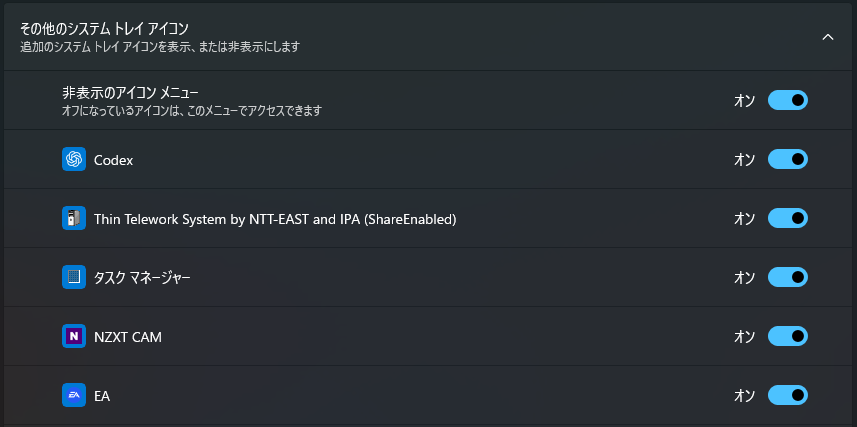
スクリプト実行後、以下のようにトグルスイッチがもともとオンになっていたものはオンのまま、オフになっていたものはオンに切り替わります。
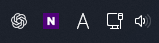
タスクバーについても、すべてのアイコンが表示されます。

実際の環境下での運用例
実際の環境下においては、Pythonが入っていない環境があるかと思います。
そうなった場合は自動化することができません。
しかし、その環境でも自動化が可能です。
それは1つのexeファイルにまとめること。
exeファイルにまとめることで、たとえPythonの環境がなくても動作します。
また、exeですからcallコマンドやstartコマンドで呼び出すことも可能です。
参考までに、exeファイルにまとめたものは以下からダウンロード可能です。
うまく動作しない場合の対処法
以下のように、うまく動作しない場合があるかもしれません。
- 要素を取得できない
- 設定変更が反映されない
上記のような場合、処理に待ち時間を設けたり、例外処理を加えたりすることで対処可能です。
エラーが起きたとしても処理が止まりにくくなります。
具体的には以下の関数・メソッド・構文をスクリプトに組み込みます。
| 関数・メソッド・構文 | 内容 |
|---|---|
| .wait() | 操作可能な状態を待つ |
| .set_focus() | 指定した要素にフォーカスする |
| try / except | 例外処理 |
| time.sleep() | 固定時間処理を待つ |
完成版スクリプトにも加えているので、ぜひ確認してみてください。
自動化における注意点
pywinautoによる自動化は万能なものではなく、以下のような注意点が存在します。
環境が変わると動作しないことがある
OSのバージョン等が変わることにより、UIが変化することもあります。
それにより要素も変化することがあります。
前のバージョンでは動いていたけど、動かなくなったということもあり得るわけです。
pywinautoは決して万能なものではありません。
環境が変化した場合は見直しが必要という点は念頭に置いておいてください。
まとめ
本記事では、Pythonのライブラリであるpywinautoを使用して、Windows 11のシステムトレイアイコンを自動的に表示させる方法について解説しました。
今回紹介した自動化の流れは、以下のとおりです。
- コマンド操作にて設定画面を開く
- pywinautoにて要素を取得し、操作対象となるトグルボタンを特定する
- トグルボタンの状態を確認し、オフになっている場合はオンに変更する
- 設定変更後に状態を再確認し、意図した設定になっているか検証する
Windows 11では、システムトレイアイコンの表示設定をGUIから変更できますが、複数のPCに対して同じ設定を行う場合、手作業では時間がかかるだけでなく、設定漏れが発生する可能性もあります。
そこで、pywinautoを活用すれば、設定画面のコントロールを特定して操作することで、一連の作業を自動化できます。
また、今回のようなGUI操作の自動化は、システムトレイアイコンの設定だけでなく、Windowsの初期設定やアプリケーションの設定変更などにも応用可能です。

特に、複数台のPCをセットアップするPCキッティング業務では、こうした細かな設定作業を自動化することで、作業時間の短縮や設定品質の均一化が期待できます。
WindowsのGUI操作を自動化したい場合は、ぜひpywinautoを活用してみてください。
WinDeployAutoでは、Windowsのセットアップや定型業務の自動化・効率化をテーマに、Bat・PowerShell・Python などを活用した仕組みづくりを行っています。
- Windowsセットアップを自動化したい
- 繰り返し作業を効率化したい
- 現場の運用負荷を減らしたい
このようなお悩みがありましたら、ぜひお問い合わせフォームよりお問い合わせください。





コメント